
To open a GEDCOM file, first find out whether you need to read a family tree, import it into genealogy software or inspect its text. These are different operations. A .ged file is not a photograph, PDF or executable application, so double-clicking may show raw text or open the wrong program. This step-by-step troubleshooting guide starts with a harmless copy, checks the file’s header, walks through a safe import, and ends with a verification list. Never upload an unknown family’s private details just to preview a file.
Identify the file before choosing an application
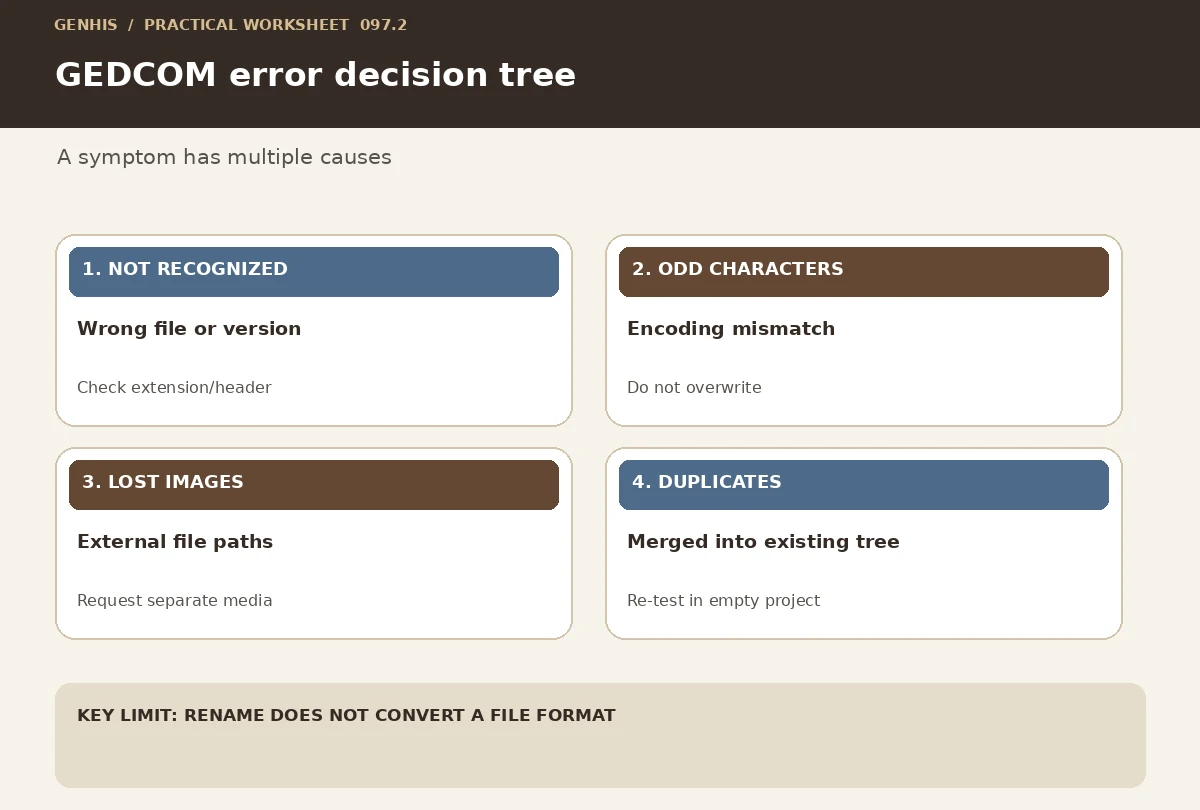
Check the complete filename and actual extension, not only the desktop icon. A typical GEDCOM exchange file ends in .ged, while a GEDZIP package generally ends in .gdz. A general-purpose ZIP archive may also hold a GEDCOM and supporting media, but its contents depend on the exporter. If the file arrived as an email attachment, save it somewhere safe and confirm the sender and context. Do not rename a .pdf or an unrelated compressed file to .ged and expect a genealogy program to understand it; changing a suffix does not convert a format.
A GEDCOM text file can often be previewed in a plain-text editor without executing code. Its first lines typically contain a record beginning with 0 HEAD, and a trailer near the end should indicate 0 TRLR. Those clues help identify a plausible GEDCOM, but they are not a comprehensive validity check. A document can have a plausible header and still contain truncated, contradictory or malformed records. Avoid editing the original in place, because text editors can alter character encoding, line endings or punctuation when you save. Use a disposable copy for inspection.

Choose import instead of assuming double-click will work
If you want a navigable family tree, use a genealogy application whose current documentation explicitly says it can import the GEDCOM version you have. Look for Import, Open, or Create Project from GEDCOM in its file menu; exact menu labels vary by program and release. An ordinary word processor is useful only for inspecting characters, not interpreting parent-child pointers or source structures. The FamilySearch GEDCOM explanation describes GEDCOM as an interchange format rather than a single proprietary genealogy program.
Import into a new, empty test database rather than merging immediately into your existing research. If a wizard asks you to match duplicate profiles, skip the merge until you have compared the incoming claims and citations. Choose the appropriate encoding or import version only when prompted and supported. Note any warnings about an unsupported tag or broken media location. A warning should not be dismissed just because names appear on the screen; source references and nuanced relationships can be dropped without an obvious change to the person count.
Read the GEDCOM header for a practical diagnosis
A GEDCOM header can include a version declaration and a character-encoding indication. For an older file, the version might be expressed as 5.5.1; a modern export may use 7.0. The exact values should be read rather than guessed. The current FamilySearch GEDCOM 7 specification describes its structure and character handling. A header tells you what the exporter claims to have written; it does not prove the content is complete or the software complies with every part of that version.
If letters with accents become question marks or gibberish, preserve the original and test a receiver known to support the declared encoding. Do not mass-replace affected names before determining whether the error comes from your viewer, an incorrect conversion or data already damaged during export. If the file seems empty, check its size and whether the transfer was interrupted. If it was downloaded from a platform that supplies a compressed media package, follow its documented import process rather than opening a contained media folder as if it were the tree itself.
Repair common errors without damaging the original
When a program says unsupported format, check the actual extension, inspect the header, and confirm the receiver’s import capabilities. If it recognizes only an older GEDCOM, request a compatible export from the source program when possible. Avoid online converters of unknown provenance, especially for trees containing living people’s information. If the file imports but photographs are missing, determine whether you received external image files at all; a plain .ged commonly points to separate paths that are meaningful only on the exporter’s computer. Broken paths are not evidence that the photographs never existed. Our guide “GEDCOM Files Explained” goes into more detail.
Other symptoms need different remedies. Duplicate individuals may mean the imported data was merged into an occupied project; compare a clean import to rule that out. Strange dates may reflect unsupported qualifiers or extensions, not necessarily historically wrong dates. Missing sources may be a mapping limitation. Build an error ledger with the symptom, example record, likely cause, attempted fix and unresolved risk. Re-export from the original application if possible; hand-editing hundreds of unfamiliar tag lines is not an appropriate first repair strategy. For a step-by-step method, see how to choose genealogy software with an evidence-first trial.
Confirm that what opened is actually trustworthy
After a successful import, examine a test group containing two generations, a marriage, an approximate date, a citation and an image link. Compare the people and families with the original project’s screenshots or export summary. Open an individual source reference and verify the repository or document citation has not become plain text with no connection to its assertion. Check whether private records about living people remain protected. A tree that looks correct in pedigree view can still have lost footnotes, research notes and alternative names.
For an illustrative fictional file, suppose the source app recorded that a person was born about 1890 based on a census, while the imported profile displays 1890 as an exact date. Even if the dates match numerically, the assertion has changed meaning. Mark the import as incomplete until you understand how uncertainty was represented. The FamilySearch preparation checklist recommends cleaning data and checking duplicates and unattached people before transfers. Apply that advice in both directions, without treating an import as independent corroboration.

Finish with a reversible and private workflow
Store the original received file read-only, keep a dated working copy, and save the imported project under a new name. Record the sending program if known, GEDCOM version, receiving application, import date, warning messages and a small checklist of successful facts. If an image reference fails, preserve the path as received while requesting the actual media separately. Never erase the only original file because a single import seemed successful or convenient.
If the source is a public family tree, consider whether its living-person data, rights and research notes permit re-use. Importing a third-party tree does not authorize publishing every claim it contains, and agreeing dates in two copies may trace back to one unverified source. The practical finish line is not merely a file opening: it is a legible, auditable, safely stored working tree, with missing information named and with your existing research left unchanged until you decide what belongs in it.
More Genealogy Tool Guides
How We Research: Source Checks and Uncertainty
We used FamilySearch documentation for GEDCOM definition and preparation and the official specification for file structure and version notes. Instructions deliberately avoid product-specific menu names because interfaces change. Diagnosis examples are generic, not tested claims about a particular application.
Import guidance examined: FamilySearch explains the exchange format, and its preparation checklist identifies problems to resolve before import. For header interpretation we consulted the GEDCOM 7 specification; for post-transfer risks we checked the documented warnings about changing data.
Reader safety note: Importing an unknown tree may introduce private details or unsupported relationship claims. No converter or file-sharing service is recommended here. The GenHis disclosure page explains site relationships; the troubleshooting path is not a promise that corrupted files can be repaired.
Yes, for inspection on a copy; a genealogy application is needed to interpret the records as a navigable family tree.
Use a currently supported genealogy application that documents import compatibility with the file’s declared version.
An encoding or viewer mismatch may be involved. Preserve the original and test a compatible import before making changes.
The file may contain paths to external pictures rather than the images. Request the media or a supported GEDZIP package.
No. Import into an empty test project first and review citations, relationships, duplicates, and privacy.